This article will demonstrate how users can view an order in the PDX UI. There are multiple ways to view orders in the UI. One of the ways is to click "Orders" under the "Orders" tab on the banner menu at the top of PDX.
This will automatically display a list of all incomplete orders.
Simply click the "x" button next to "Incomplete" in the status box to remove that filter.
Now a list of all orders will appear.
Users can also filter the orders by using any of these criteria.
Split Screen View
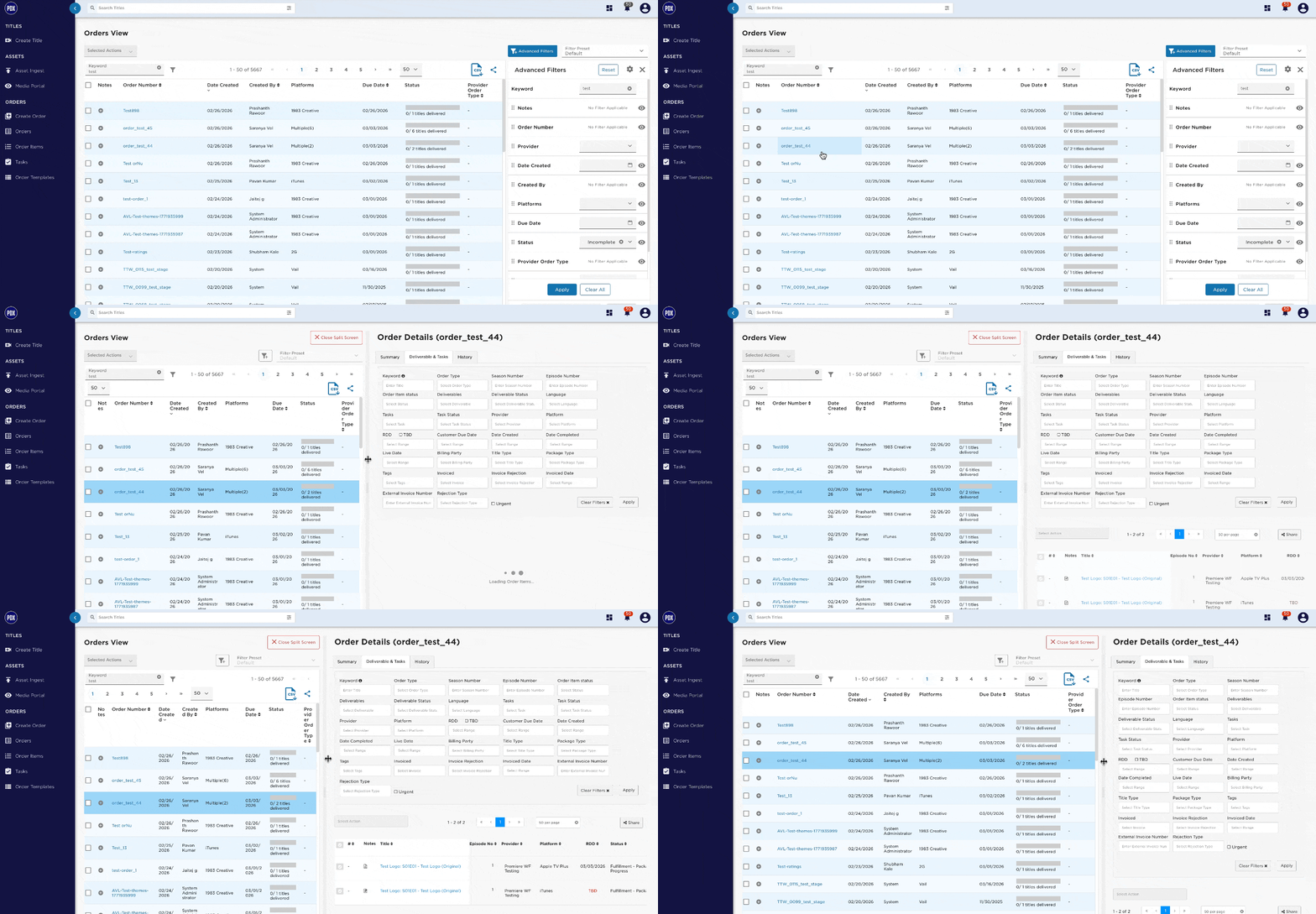
Similar to the Order Items dashboard, users can activate the split screen view on the orders dashboard. THis can be activated by clicking in the Order Item ID cell, not on the Order Item ID itself.
Instead of clicking on the order number (ex. order_test_45), users will need to click the empty space around the text.
Demonstration:
Another way to view orders is through any of the dashboards listed in the "Dashboards" tab on the banner menu at the top of PDX.
The WIP (Work in Progress) dashboard shows users asset based order items that are in progress, but haven't been completed yet. For more info on this dashboard, click here.
The final way to view orders in the PDX UI is to go to a title's title page. Under the "Summary" tab, a list of the open orders will appear.