Users can add restrictions to avails to limit the following items for the end users for specific territory offers:
- Availability of downloads
- Language assets
- Audio formats
- Video quality
- Video color
Please note that restrictions are platform based. Users should refer to SOP (Standard Operating Procedure) or internal documentation based on the platform to understand which resolution should be selected. Not every platform can utilize the same definitions.
To apply restrictions manually, select the avails that need their restrictions changed.
Or click select all, by clicking the checkbox at the top of the column, if restrictions need to be applied to or removed from all avails.
Add Restrictions
To add a restriction, click the action drop-down of one of the highlighted rows and select "Add restriction".
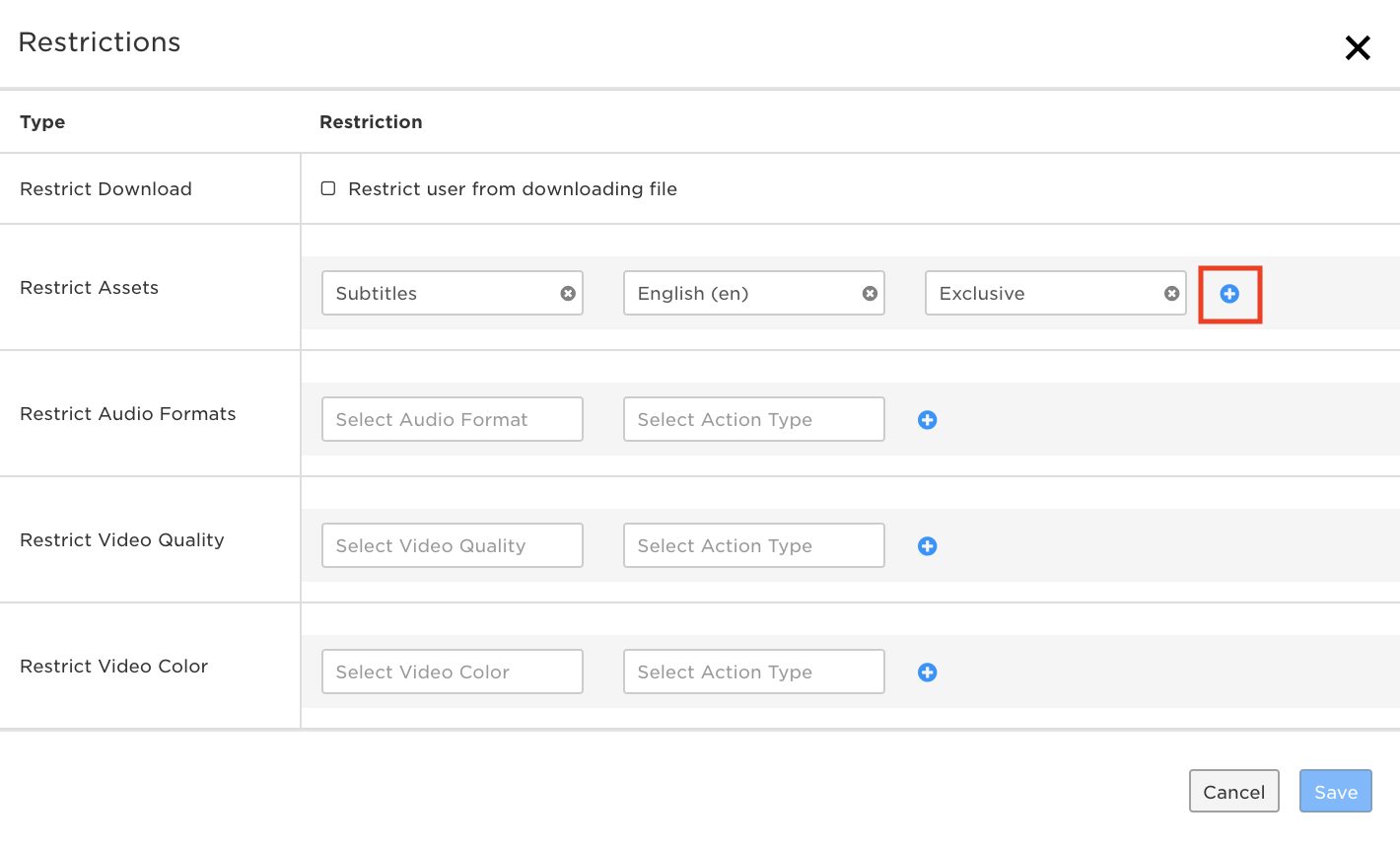
A pop-up window will appear titled "Restrictions":
From here, the user has several options, outlined below:
Restrict Download
To prevent a user from downloading a file, check the restrict download box at the top.
Restricting Language Assets
To restrict language assets, choose an asset type such as closed captions, dubbed audio, etc. For more information on asset types, click here.
Next, choose the specific language of the asset that needs to be restricted. Then designate whether it should be an inclusive or exclusive restriction.
- Exclusive Restriction - the assets selected are excluded from the territory offer.
- Inclusive Restriction - the asset type and language selected is the only one included in the territory offer.
Users can add more restrictions to each restriction type by clicking one of the blue plus buttons.
 Restricting Audio Formats
To restrict audio formats, choose a format from the drop-down menu below. Audio formats include:
- AAC - Advanced Audio Coding is an audio coding standard for lossy digital audio compression. Designed to be the successor of the MP3 format, AAC generally achieves higher sound quality than MP3 at the same bit rate.
- Dolby Atmos - An object-based surround sound technology developed by Dolby Laboratories. It expands on existing surround sound systems by adding height channels, allowing sounds to be interpreted as three-dimensional objects
- Dolby Digital 5.1 - the common name for six-channel surround sound audio systems. It uses five full bandwidth channels and one low-frequency effects channel (the "point one").
- Dolby Digital 7.1 - the common name for 8 channel surround sound audio systems. It uses 7 full bandwidth channels and one low-frequency effects channel (the "point one").
- Dolby Digital Plus 5.1 - Dolby Digital 5.1 with greater device compatibility
- Dolby Digital Plus 7.1 - Dolby Digital 5.1 with greater device compatibility
Then select the restriction type under "Select Action Type":
- Exclusive Restriction - the audio format selected are excluded from the territory offer.
- Inclusive Restriction - the audio format selected is the only one included in the territory offer.
Restricting by Video Quality
Video quality can be restricted as well by selecting the quality type here. Users can choose from:
- High Definition - 720p or 1080p
- Ultra High Definition - 4k or greater
- Standard Definition - anything below 720p
Then users can select whether to make it an exclusive or inclusive restriction under "Select Action Type":
- Exclusive Restriction - the video quality selected is excluded from the territory offer.
- Inclusive Restriction -the video quality selected is the only one included in the territory offer.
Restricting by Video Color
Lastly, users can restrict by any of these color types by selecting them from the drop-down menu below:
- High Dynamic Range (HDR) - A color display that uses an extended EOTF curve with a minimum of 10 bits of color depth.
- Standard Dynamic Range (SDR) - A color display that uses a standard EOTF curve with 8 bits of color depth.
- Dolby Vision HDR - An HDR color display that has dynamic metadata in the core of the HDR image data. Dolby Vision HDR has a layer of HDR as well as an SDR layer.
Then choose whether to make it an exclusive or inclusive restriction under "Select Action Type":
- Exclusive Restriction - the video color selected is excluded from the territory offer.
- Inclusive Restriction -the video color selected is the only one included in the territory offer.
Saving Restrictions
Once the restrictions have been chosen for the avail, click the blue "Save" button to apply them.
On this menu, the user should select which options need to be restricted. The user should refer to any SOP or internal documentation that guides them on the proper restriction options. Once selected, the user should click Save.
The page will briefly refresh, and the user should now see a blue "Restriction" button on the avails selected that indicate existing restrictions.
Removing Restrictions
Users can click on any of the blue restriction buttons to see the specifics of the restrictions on each territory offer and make any necessary changes.
If the user removes all restrictions, the user will observe the blue restriction button removed from that Avail's row. Restrictions can not be removed in bulk, but they can be overridden in bulk by adding new restrictions in bulk that are different from the former.
For information on How to Update Avails, click here.